
-
- Products
- Indoor Household Cords
- Appliance Cords
- General Purpose Short-Length Cords
- General Purpose Extension Cords
- Landscape & Decorating Cords
- Bright Color Extension Cords
- Oil-Resistant Extension Cords
- Cold-Flex Extension Cords
- VividFlex Power Cords
- EXTREME All-Weather Cords
- Cord Management
- Task Lights
- Adapters & GFCI Devices
- Where to Buy
- About
- Careers
- Glossary
- Catalog


10 Tips for Choosing a Thermal Receipt Printer
Choosing a Thermal Receipt Printer is not just about finding the lowest price. The right model should match your daily order volume, counter space, paper width, and checkout system. A busy café may need fast printing and a dependable auto-cutter. A small shop may care more about compact size and simple setup. Small details matter. A printer that jams during a lunch rush can slow the whole counter.
For this guide, thermal-printer consultant Daniel Mercer is an illustrative expert persona, not a verified industry source. His practical reminder is: “Choose for the busiest hour, not the quietest one.” Use that idea to compare print speed, resolution, connectivity, driver support, and paper loading. Also check whether the printer works with your point-of-sale software before you buy. A listed feature is not proof of compatibility. Test the actual setup when possible.
These 10 tips will help you weigh performance, reliability, running costs, and support without getting lost in spec sheets. Look at real needs: receipts printed per day, USB or network connections, and the space beside your register. Consider replacement rolls and warranty terms, too. There is no perfect printer for every business. Some details are easy to overlook. A thoughtful choice can make routine transactions smoother—and help prevent a small equipment issue from becoming a daily frustration.
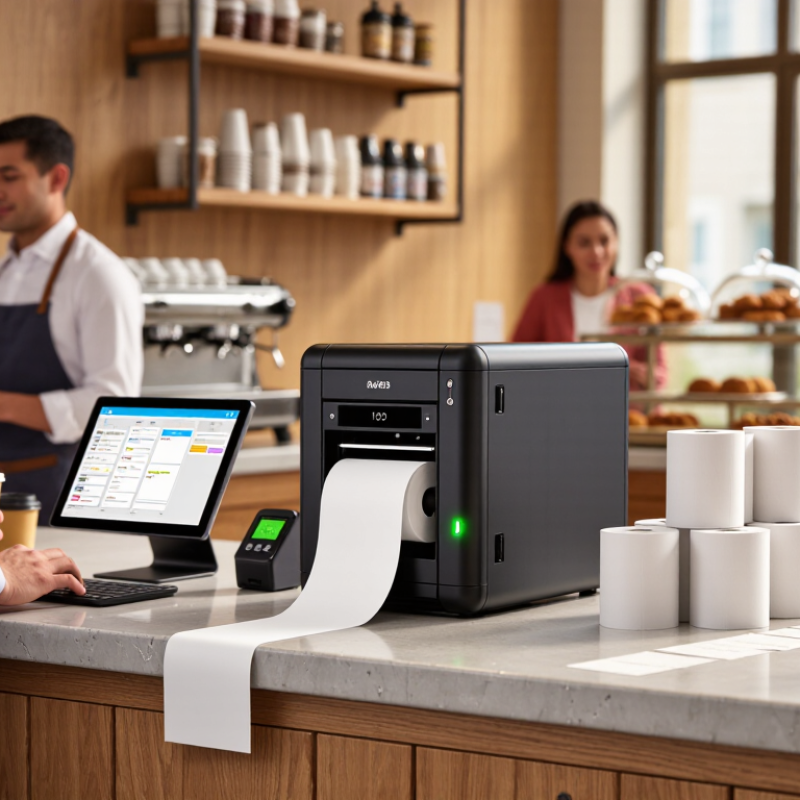
Table of Contents [Hide]
Identify Your Business and Point-of-Sale Requirements
10 Tips for Choosing a Thermal Receipt Printer
Identify Your Business and Point-of-Sale Requirements
Start with the checkout you actually run, not the printer specification sheet. Note daily receipts, peak-hour volume, counter space, and whether staff need a customer-facing copy. A café may value fast printing and a small footprint; a busy service desk may need a cutter and easy paper loading. Peak periods matter. Check which paper width your current point-of-sale software supports, and confirm the printer’s connection options fit your setup.
Tip: Write down your must-haves before comparing models. Include receipt width, connection type, cash-drawer support, and expected daily print volume. Test the workflow, too: Can staff replace a paper roll without moving the terminal? Will cables reach the register? Small details count.
The Federal Reserve’s 2024 Diary of Consumer Payment Choice reports that cash made up 16% of U.S. consumer payments in 2023. That figure offers context, not a forecast for every business or country. If you handle cash, verify that the printer can trigger your drawer through your POS system. If receipts are frequent, ask suppliers about rated print speed and cutter durability, then test with your actual receipts. I would not choose on speed alone; a printer that fits poorly can slow the whole counter.